Displays
Koinè allows you to configure one or more displays for projecting surtitles.
In the software, a display represents the content shown on a video output device, such as a projector or monitor. Each display has a space where you can position your surtitles.
The displays are configured from the display configuration interface. Click the  button at the top right of the Koinè window to bring up this interface.
Display bar
The display bar shows the list of displays you have configured for your project. It is located at the bottom of the display configuration interface.

Editing the display list
Add a display
By default, only one display is configured. To add a new display, click the + icon at the left of the screen bar.
Delete a display
To delete a display, right-click the display in the display bar, then select Delete.
Reorder displays
You can reorder the displays. Click a display in the display bar, then drag the display to the desired location.
Select a display
You can click a display in the display bar to select it as the active display. When a display is active, its content appears in the main view and can be edited.
Tip
Press Ctrl+Tab to quickly move to the next display, and Ctrl+Shift+Tab to move to the previous display.
Display properties
To access the display properties, click the display in the display bar. The display properties panel will appear on the right side of the display configuration interface.
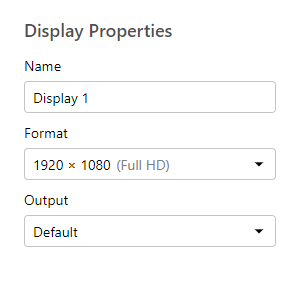
Name
The Name field allows you to assign a name to each display to keep your project organized. By default, displays are named Display 1, Display 2, and so on. Deleting the name restores the default value.
Tip
Double-click a display in the display bar to quickly rename it.
Format
The Format field allows you to change the dimensions of the display boundaries in the main view. The drop-down list includes the most common formats. The Other option allows you to enter arbitrary values for the width and height of the display.
Note that the actual resolution of the video output is configured in Windows Settings. See Preparing video outputs for more details. We recommend matching the screen format with the video output resolution so that the dimensions of the screen content are measured in physical pixels.
Output
The Output field allows you to choose the video output on which the display content will be displayed. The drop-down list includes monitors, projectors, and any other video output connected to your computer. See Preparing video outputs if the desired video output does not appear in the list.
The Default option allows a video output to be selected automatically. When there are several video outputs available, the first video output that does not contain the Koinè window will be used.
The Internal Display option refers to the monitor built into your laptop.
The Disabled option allows you to not show the display in projection mode.
The  icon appears when a video output that was previously set is no longer available. You must then reconnect the video output or choose another video output from the drop-down list.
Preparing video outputs
In most cases, you will only need to connect a monitor or projector to your computer to use it in Koinè. However, it may be necessary to configure the device in Windows.
Extended mode
To use an output device in Koinè, ensure that it is configured in extended mode.
Choose Start > Settings > System > Display
Select the device you want to change
Scroll down to the Multiple displays section
From the drop-down list named Multiple Displays, choose Extend these displays
Resolution
The resolution of an output device should be properly configured by default. However, you can view or change the resolution of a device from the Windows settings.
Choose Start > Settings > System > Display
Select the device you want to change
Scroll down to the Scale and layout section
View or select the resolution from the drop-down list labeled Resolution
We also recommend matching the value of the Format field in the screen properties to the video output resolution so that the dimensions of the screen content are measured in physical pixels.