Text editing
Enter text
To enter text in a card, click inside the card to bring up the text cursor, and type your text.
Tip
You can also press Enter to place the text cursor in a card.
Word wrap
Line breaks are added automatically when the text exceeds the width of the card. These are visible both in the display preview and in the surtitle board.
The width of the card can be adjusted in the track properties.
Select text
To select a snippet of text, click on the text and, without releasing the mouse button, drag the mouse over the snippet.
To select multiple snippets, select the first snippet, then select the other snippets while holding down the Ctrl key.
To select a word, double-click on the word you want to select. To select multiple words, do not release the mouse button at the end of the double-click and drag the mouse over additional words.
To select a line, triple-click on the line you want to select. To select multiple lines, do not release the mouse button at the end of the triple-click and drag the mouse over additional lines.
Tip
You can also select text using the keyboard. Place the text cursor in a card, then while holding down the Shift key, move using the arrow keys or a keyboard shortcut.
Copy and paste text
To copy or cut text, select a snippet of text, then choose Edit > Copy or Cut. This stores the snippet on the clipboard.
To paste text, place the text cursor in a card, then choose Edit > Paste. The snippet stored on the clipboard will be inserted at the cursor location.
Find text
To search for text in the project, choose Edit > Find. A bubble will appear in the upper-right corner of the Koinè window.
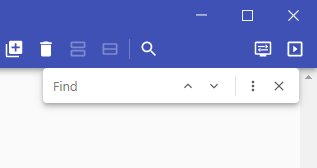
Type the term you want to search for. The search will start as soon as you begin typing. The first match will be selected automatically. The selected match number and the amount of matches found appear to the right of the search term.
To go to the next result, click  or press Enter.
To go to the previous result, click  or press Shift+Enter.
To end the search, click  or press Esc.
You can also click  to open the Find & Replace dialog.
Find and replace
To find and replace text, choose Edit > Find & Replace. The dialog below will appear.
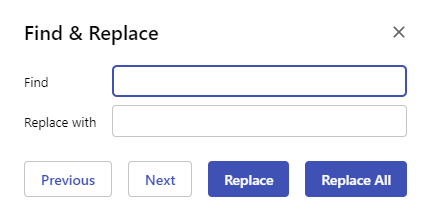
Enter the term to be replaced in the Find field. The search will start as soon as you begin typing. The first match will be selected automatically. The selected match number and the amount of matches found appear to the right of the search term.
Enter the new text in the Replace with field.
Click Replace to replace the selected match with the new text. The next match found will be selected.
Click Replace All to replace all occurrences of the term to be replaced with the new text.
You can also go to the next or previous match without making any replacements by clicking Next or Previous.
Exit text entry
To exit text entry, click in the background of the surtitle board or press Esc. The text cursor will disappear and the active row will be highlighted.