The workspace
When Koinè is launched, the following window appears.
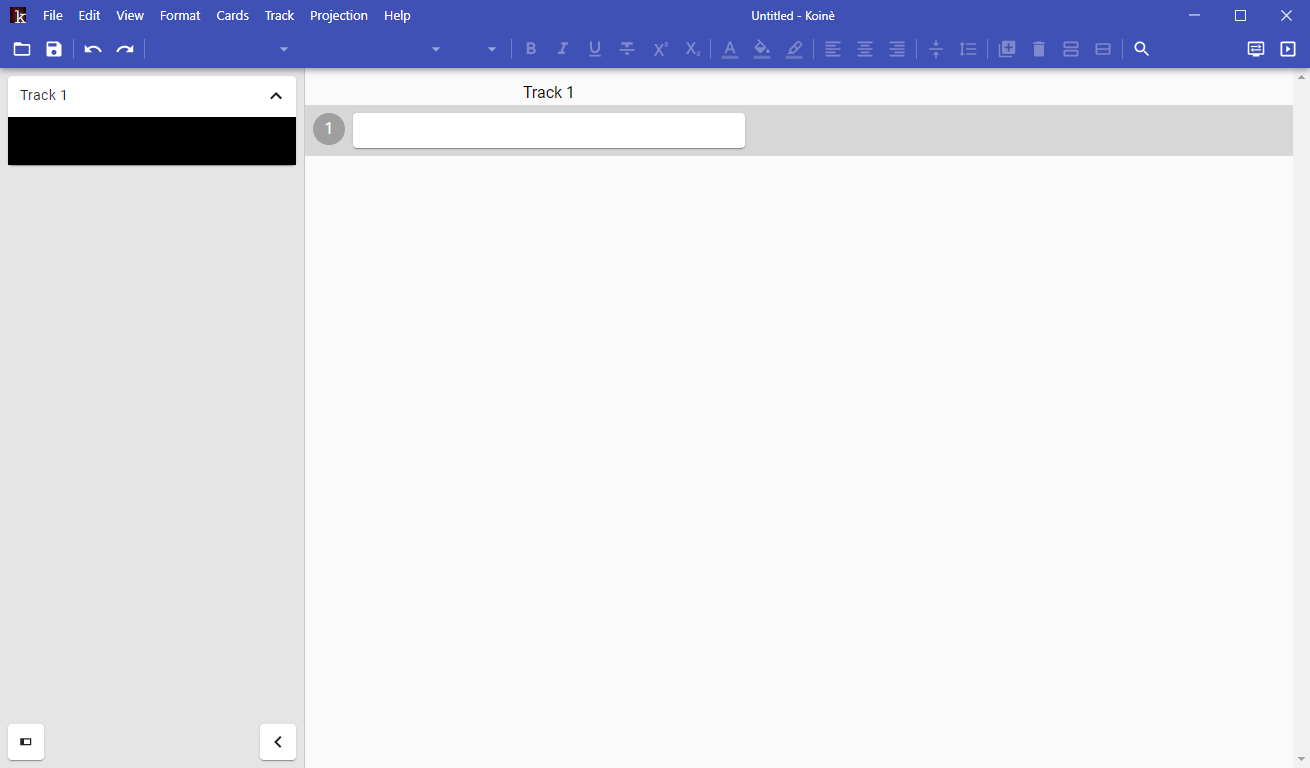
This window is your workspace for preparing and projecting surtitles.
The surtitle board
At the heart of the workspace is the surtitle board. It displays all the surtitles in your project in a grid format.
Each cell contains a card. A card corresponds to a surtitle that is displayed at a given moment. It can consist of one or more lines of text.
Each column represents a track. A track is a distinct sequence of cards. For example, a project could contain one track in French and another in English.
Each row contains the cards that will be displayed at the same time. These rows are numbered. The order of the rows reflects the chronological sequence in which the surtitles will appear during the projection.
The preview sidebar
Located on the side of the workspace, the preview sidebar allows you to see how the surtitles will appear during projection. Each track is displayed in miniature.
The active row
The active row corresponds to the row of cards currently displayed in the preview pane and on the stage during projection.
When you start the surtitles, the active row is highlighted. It moves as the surtitles are cued, allowing you to follow the performance.
When entering surtitles, the active row is the row containing the text cursor. Any text you enter is immediately shown in the preview panel.
Customize your workspace
There are several options that allow you to customize your workspace.
Change the position of the preview sidebar
The preview sidebar can be positioned on any of the four sides of the workspace to suit your preference.
To change the position of the preview sidebar, click the  button, then choose the desired position from the drop-down menu.
Open a preview window
A track’s preview can be displayed in a separate window, allowing it to be moved to another monitor or anywhere on the desktop.
To open a window, hover the mouse cursor over the preview, then click the  icon that appears in the lower-right corner.
The window can then be resized as desired.
Change the zoom factor of the surtitle board
You can adjust the text size in the surtitle board to improve readability. This setting does not affect how the surtitles appear during projection.
To increase the text size, choose View > Zoom In.
To reduce the text size, choose View > Zoom Out.
To restore the default size, choose View > Restore Zoom.