Formatting
Font family
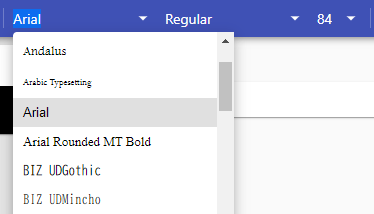
To change the font family, click on font family name in the toolbar, and choose a new family from the drop-down menu.
Typeface
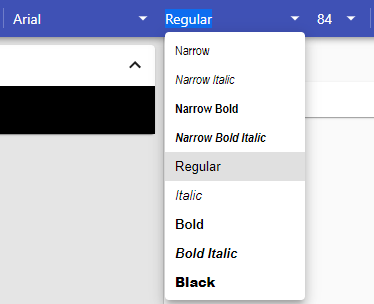
To change the typeface, click the typeface name in the toolbar, and choose a new type from the drop-down menu.
Font size
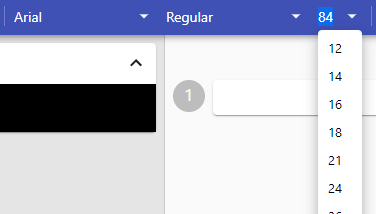
To change the font size, click the current size in the toolbar, and choose a new size from the drop-down menu.
You can also choose Format > Increase Font Size or Decrease Font Size from the menu bar to enlarge or reduce the font size by one point.
Bold, italic, underlined, strikethrough, and superscript
To change the text formatting, click one of the following buttons:

 Bold
Bold Italic
 Underline
 Strikethrough
 Superscript
 Subscript
Click the button again to cancel its effect.
Text, highlight, and background colors
To change the color of an element, click one of the following buttons:
 Text Color
 Background Color
 Highlight Color
Then, choose a color from the drop-down menu.
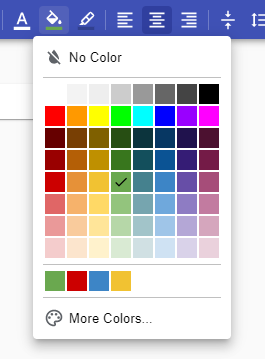
The last colors you used appear in the bottom row of the color palette.
The No Color option makes the background transparent.
The More Colors option is described below.
More colors
To choose a color that is not part of the default palette, click More Colors. The table below will appear.
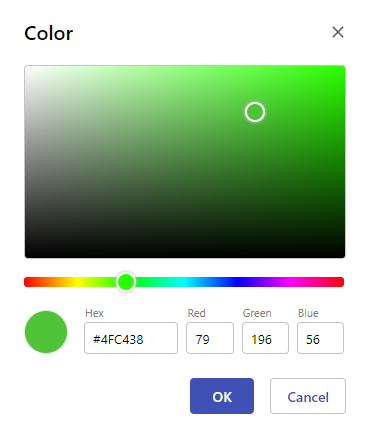
Click in the gradient rectangle to adjust the saturation and value of the color.
Click the rainbow slider to adjust the hue of the color.
The Hex field allows you to enter the color in hexadecimal notation.
The Red, Green, and Blue fields allow you enter the values for each of the color components. These values are expressed in a range from 0 to 255.
Tip
After clicking the gradient rectangle or the rainbow slider, you can press the arrow keys to fine-tune your selection.
Left, center, and right alignment
To change the horizontal alignment, click one of the following buttons:
 Align Left
- Center
- Align Right
Vertical alignment
To change the vertical alignment, click the  button. Then, choose one of the following options from the drop-down menu:
 align top
- Center Vertically
 Align Bottom
Line spacing
To change the line spacing, click  , and choose a value from the drop-down menu.
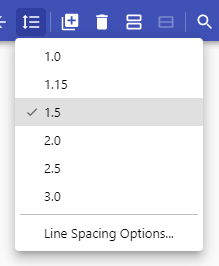
The value 1.0 corresponds to single line spacing, 2.0 to double line spacing, and so on.
You can also enter a custom line spacing value by choosing Line Spacing Options.