Tracks
Track editing
Select tracks
To select a track, click the track header at the top of the surtitle board. The track header will be highlighted in blue to indicate that it is selected.
To select multiple adjacent tracks, click a track header and, without releasing the mouse button, drag the mouse over additional tracks.
To select non-adjacent tracks, select the first track, then select the others while holding down the Ctrl key.
To select all tracks, choose Edit > Select All.
To cancel the selection, press Esc.
Tip
You can also select tracks using the keyboard. Place the text cursor in a card, and press Ctrl+Alt+Space. The track containing the cursor will be selected. Then, to select other tracks, hold down the Shift key while moving using the Left/Right Arrow keys or a keyboard shortcut.
Insert a track
To insert a new track, choose Track > Insert Track Before or Insert Track After. A new track will be added before or after the track containing the text cursor.
Delete tracks
To delete one or more tracks, select the tracks you want to delete, then choose Track > Delete Tracks or press Delete.
Resize a column
The column widths in the surtitle board can be adjusted to display more or less text. Resizing these columns affects only how the text is displayed in the surtitle board.
To resize a column, first move the mouse cursor over a track header. Handles will appear at the ends of each column. Then drag one of these handles while holding down the mouse button.
Copy and paste tracks
Koinè allows you to copy tracks and paste them elsewhere or into another project.
To copy or cut tracks, select the tracks, then choose Edit > Copy or Cut. This operation stores the tracks on the clipboard.
To paste tracks, place the text cursor in a card, then choose Edit > Paste. The tracks stored on the clipboard will be inserted to the right of the cursor location.
To paste tracks by replacing existing tracks, select the tracks to be replaced, then choose Edit > Paste. The selected tracks will be replaced by the tracks stored on the clipboard.
Track properties
To access the track properties, double-click the track header. The dialog below will appear.
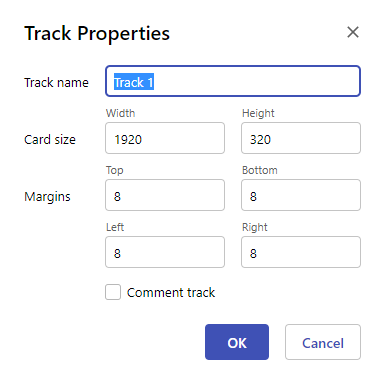
Track name
The Track name field lets you to assign a name to the track to make it easier to find. By default, tracks are named Track 1, Track 2, and so on. Clearing the name allows you to restore the default value.
Card size
The Card size field corresponds to the width and height of the cards in the track. These dimensions are measured in pixels.
The width and height of the cards in the track are also shown in the area properties.
Margins
The Margins field allows you to adjust the spacing between the text and the edges of the card. These dimensions are measured in pixels.
Comment track
The Comment track option indicates that the track is intended to hold comments.